
Approve or send back your plan
When a plan reads Waiting for your review, open it on Plan and choose Approve or Send back. Approving shows you what it commits before anything starts. Sending back asks for a reason, and your founding Role revises the plan with it.
Before you start
- A plan reads Waiting for your review. It's under Needs you on Plan, and in Approvals as Plan to review.
Steps
- Go to Plan, select Needs you and open the plan.
- Read the plan. At the top, Needs you says what your founding Role wants to do, and If you wait says what stays paused until you decide. Steps shows what starts under Now and what comes Later. In short says why it needs you. What changed compares it with the last version.
- To approve, select Approve. Approve this plan? opens.
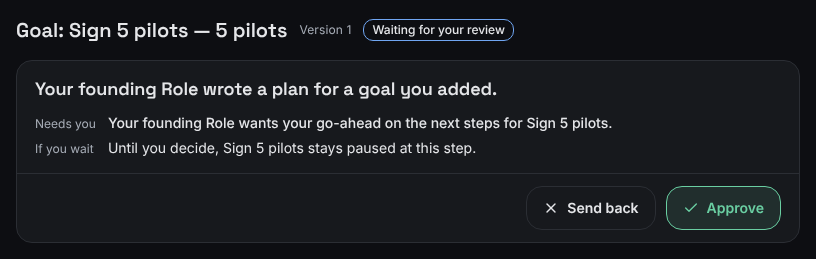
The decision sits at the top of the plan, above its steps. - Under What you’re approving, check the goal and its deadline, what Starts on approval, What each Role can use and the total, your Spending limit left, and what the plan Needs you for. Then select Approve and start, or Cancel to go back. If the plan has nothing under Now, the confirm says approving starts nothing yet, and its button reads Approve plan.
- To send it back instead, select Send back and write what you want done differently under What should change? (required).
- Select Send back with this reason. It stays dimmed until you've written a reason, and while the reason is over the limit shown under the box.
What you'll see
- After you approve: "Approved. The Now steps are starting." The plan then reads Running.
- If the plan had nothing under Now: "Approved. Nothing starts yet — your founding Role starts the next steps when they're ready." The plan then reads Approved — nothing is running yet.
- If work is paused, for example because you suspended all your Roles: "Approved. It starts when all work is resumed." Your approval is kept. After a suspend, the plan starts once you select Resume all Roles.
- After you send it back: "Sent back. Your founding Role is revising the plan." The plan reads Sent back — your founding Role is revising it until a new version arrives.
The same review is in Approvals as Plan to review. There, it asks "Approve the next steps for" your goal, a short form of what you're approving shows in the review itself, and the approve button names the total, for example Approve — up to an amount. Selecting it opens the same Approve this plan? confirm, and only Approve and start approves. Send back works the same way in both places.
If something's different
- Approve is dimmed and you see "We can’t work out what this will use right now, so it can’t start yet. Nothing was saved." Wait a moment and open the plan again.
- You see "The terms changed after they were shown, so nothing was started. Nothing was saved. Approve again to see the current terms." Select Approve again and check the new amounts.
- You see "The plan couldn’t start, so nothing was started. It goes back to your founding Role to fix." You don't need to do anything. A new version comes to you.
- A step reads "Nothing is left of the money set aside for hiring Roles. Add funds to approve." See Your plan needs funding: what to do.
Still stuck? In the app, open Help and choose Email support.
Related
Checked against the product on 11 November 2026
Still stuck?
Tell us what you were trying to do and we'll help.