
Complete the setup steps
Setup takes you through seven steps on one screen: Company, Head start, Goals, Money, Allowance, Charter and Approvals. Your Roles (AI teammates, each with one job) don't start until you finish, and you approve what they may do on the way.
Before you start
- You've verified your email and selected Get started.
- Want a head start? Describe your business first and Axiom drafts your company and goals. See Draft your setup from a description.
Steps
- Company: answer What does your business do, and why?, What do you offer? and Who do you serve?. Anything your Roles must respect? is optional. Select Save and continue.
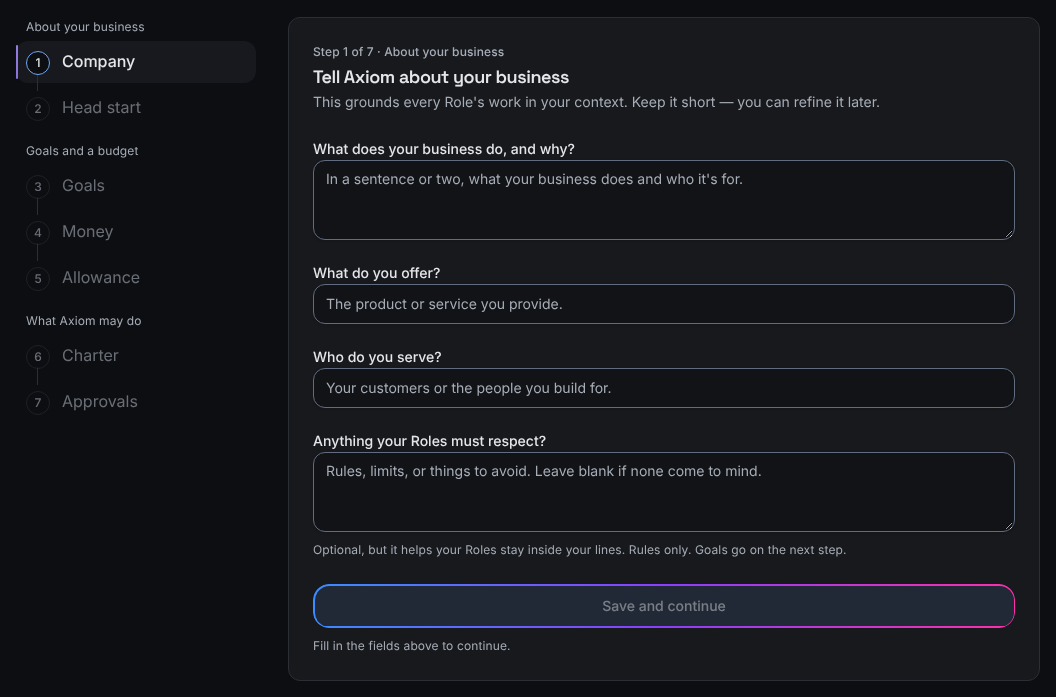
Setup, with every step listed down the side. - Head start: paste anything your Roles should know into Reference material and select Save and continue, or select Skip for now.
- Goals: fill in What are you measuring?, How is progress measured?, Target, Unit, Deadline and How often should progress be reviewed?. To add another goal, select + Add another goal. Select Save and continue.
- Money: check Funds available now and the figures under Set for you. If you want work to pause at a set amount, enter a Stop-at (optional) and choose per month or in total. Select Continue.
- Allowance: set Points a day. To check Your time zone, open What happens when you reach your allowance, and your time zone. Select Save and continue.
- Charter: read Your starting charter, check What you've set (select Edit to change anything), tick I've reviewed this and approve it and select Approve and continue.
- Approvals: in Where to send approvals, keep the email you signed up with or enter another. Select Finish setup.
What you'll see
Each step shows where you are at the top, for example Step 3 of 7 · Goals and a budget. The list down the side groups the steps under About your business, Goals and a budget and What Axiom may do, with a one-line summary of each step you've finished. You can open a finished step to review it. After the last step, Getting your workspace ready, then Approvals.
If something's different
- On Money, Continue stays dimmed until your funds are shown. If you see Your workspace has no funds yet, work can't start until funds are added. Email us.
- If you see Confirm it's still you, your session timed out. Sign in again: what you entered is still there.
- If a step shows Still finishing, see Setup is taking longer than usual: what to do.
Still stuck? Email [email protected] from the address you signed up with. Once setup is finished, you can also open Help in the app and choose Email support.
Related
Checked against the product on 11 November 2026
Still stuck?
Tell us what you were trying to do and we'll help.