
Set or change your stop-at
On Budget, select Set a stop-at (or Change stop-at), enter an amount, choose per month or in total, and select Save stop-at. Work pauses when spend reaches it, even with funds left.
Steps
- Go to Budget.
- In the Spending limit figure, select Set a stop-at, or Change stop-at if you already have one.
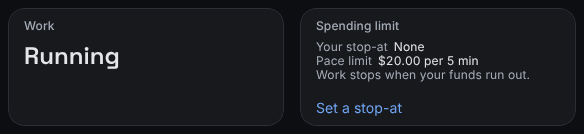
The stop-at link sits at the foot of the Spending limit figure. - In Your stop-at, under Stop-at, in dollars, enter the amount.
- Choose per month to reset it each month, or in total to count everything spent since you started.
- Select Save stop-at.
To remove it, open the same dialog and select Clear stop-at. Work then pauses only when your funds are used up.
What you'll see
The dialog shows your new stop-at, for example "Work pauses at … spent a month." The Spending limit figure lists Your stop-at, and for a monthly stop-at, Spent this month and when it resets.
If something's different
- "That’s at or below what’s been spent" means work would pause straight away. Enter more than the amount it shows, or clear the stop-at.
- If your stop-at is more than your funds, Budget says work stops at the funds you have. Your stop-at applies once you add more.
Still stuck? In the app, open Help and choose Email support.
Related
Checked against the product on 11 November 2026
Still stuck?
Tell us what you were trying to do and we'll help.