
What the Budget screen shows
Budget shows what your Roles (AI teammates, each with one job) can spend, what they've spent and where it went, whether work is running, and the limits that pause it.
How it works
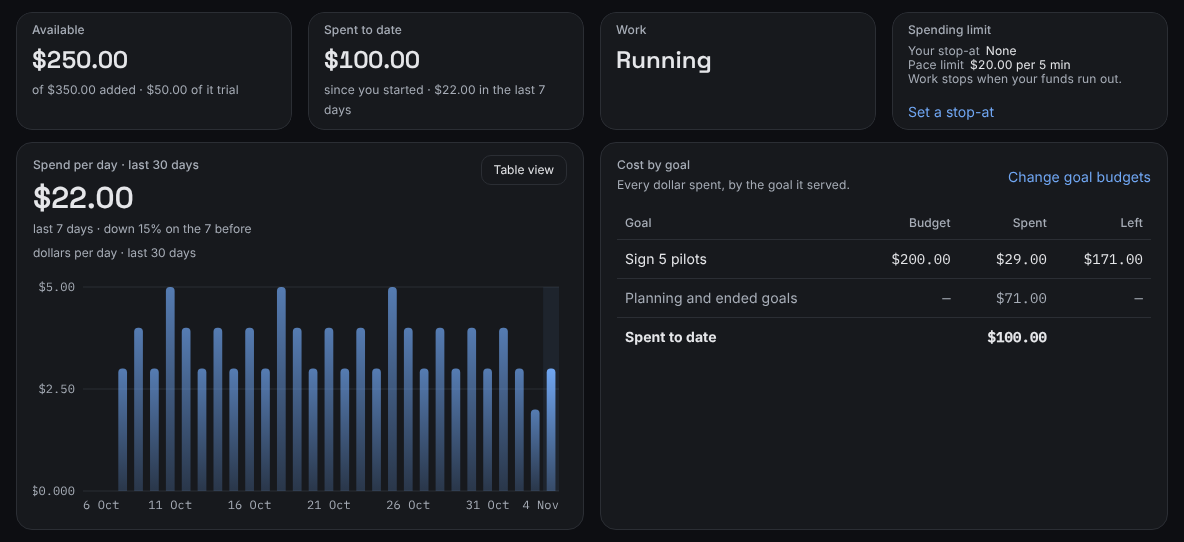
Four figures run across the top:
- Available: what's left to spend, out of everything you've added. If part of it is trial credit, the line under it says how much.
- Spent to date: everything spent since you started, and how much of it in the last 7 days.
- Work: Running, Paused or Stopped. When work isn't running, the line under it says why, for example Funds used up or Your stop-at.
- Spending limit: the limits that pause work. See What you pay for and how the spending limit works.
Below them:
- Spend per day · last 30 days: a chart of daily spend. You can switch it to a table. The headline compares the last 7 days with the 7 before.
- Cost by goal: every dollar spent, by the goal it served, with each goal's Budget, Spent and Left. A goal's Spent includes the planning for it. Spend that didn't go to a current goal, such as work on goals that are reached or ended, shows as Planning and ended goals. To give a goal more budget, select Change goal budgets.
- Added funds: your card payments, refunds and credits, each with its receipt. See Find a receipt for a payment.
What you'll see
Before you add anything, Budget shows No funds added yet and an Add funds button. Without a subscription plan, the button reads Pick a plan to add funds. When work is paused, a banner at the top says why and what to do. Days with spend appear on the chart once your Roles start work.
If something's different
- This didn't load means Budget couldn't read your figures. Select Try again. Your spending limit still runs while the page is down.
Still stuck? In the app, open Help and choose Email support.
Related
Checked against the product on 11 November 2026
Still stuck?
Tell us what you were trying to do and we'll help.