
A goal has run out of budget: what to do
When a goal shows Needs funding, one of your Roles (AI teammates, each with one job) is on it, but the goal has no budget left, so it can't take on new work. Open it on Goals and add budget to it, or move budget onto it from a goal with some to spare.
Before you start
- You'll see A goal has run out of budget at the top of the goal, and Needs funding and Needs you beside its name.
Steps
- Go to Goals. The goal that needs funding opens first. If not, select it in the list.
- Read the figures in the notice: Budget, Budget left, Spent and Committed to work.
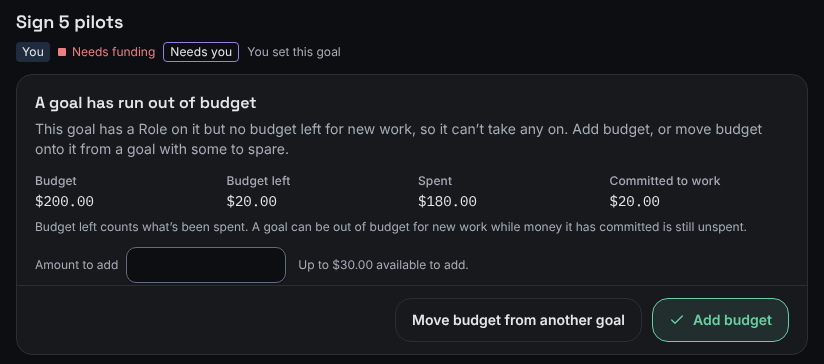
The notice holds the goal's figures and both ways to fund it. - To add from your funds, enter an Amount to add and select Add budget. The line beside the field shows how much is available to add.
- To move budget from another goal instead, select Move budget from another goal. Choose a goal in Move from, enter the Amount to move and select Move budget.
What you'll see
The notice goes away. The goal shows Ready or Waiting again (both mean it's active), its Budget and Budget left figures go up, and your Roles can take on new work for it.
Budget left can look like there's money left while the goal still needs funding. As the notice says: "Budget left counts what’s been spent. A goal can be out of budget for new work while money it has committed is still unspent."
If something's different
- If you see "All your funds are already given to goals. Move budget from another goal, or add funds.", select Add funds to add money to your workspace (without a subscription plan, it reads Pick a plan to add funds), or move budget from another goal.
- If you see "That’s more than your workspace has available. Move budget from another goal, or add funds.", enter a smaller amount. Nothing was saved.
- If you no longer need the goal, you can drop it instead. See Drop a goal.
Still stuck? In the app, open Help and choose Email support.
Related
Checked against the product on 11 November 2026
Still stuck?
Tell us what you were trying to do and we'll help.