
Create a goal
Go to Goals and select New goal. Say what your Roles (AI teammates, each with one job) should achieve, give it a target and a budget, and select Create goal. Your founding Role then writes a plan for the new goal.
Before you start
- You've finished setup. Your first goal came from setup; this adds another.
- The budget you give the goal comes from your workspace's funds. To see what's available, go to Budget.
Steps
- Go to Goals and select New goal at the top of the goal list. If you have no goals yet, select New goal under No goals yet.
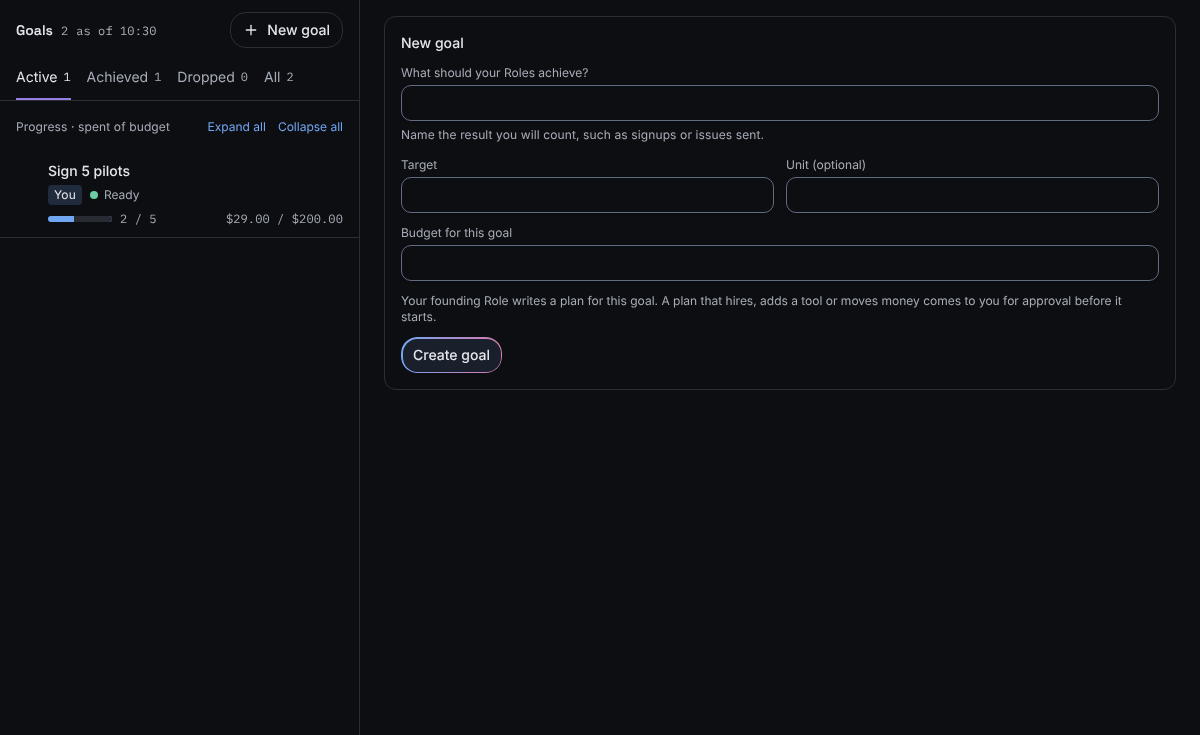
The form opens beside your goals list. - In What should your Roles achieve?, name the result you'll count, such as signups or issues sent.
- Enter a Target: the number you want to reach.
- Optionally, enter a Unit (optional), such as signups.
- Enter a Budget for this goal: the money set aside for this goal's work.
- Select Create goal.
What you'll see
The new goal appears in the goal list with the You marker and the Ready status. Its progress reads Not yet measured until a measurement is recorded.
Your founding Role writes a plan for it. When the plan is ready, you approve it or send it back on Plan. A version that hires no one, adds no tools, moves no money and changes no checks starts without asking you, and you can still send it back. See How your plan works.
If something's different
- If you see "Fill in the goal, a target above zero and a budget above zero.", one of the fields is empty or not above zero. Fill it in and select Create goal again.
- If you see "That’s more than your workspace has available. Move budget from another goal, or add funds.", the budget is more than your funds that aren't already given to goals. Nothing was saved. Enter a smaller budget, move budget off another goal, or add funds on Budget (you need a subscription plan first).
- The form has no deadline field. Only goals from setup have a deadline, so a goal you create here shows No deadline under its markers on Goals.
Still stuck? In the app, open Help and choose Email support.
Related
Checked against the product on 11 November 2026
Still stuck?
Tell us what you were trying to do and we'll help.